
Overview
Keyboard shortcuts help you move through Springboards without breaking your rhythm. Whether you're navigating boards, editing content, or adjusting your view, they keep everything fast, fluid, and click-free.
Where to Find the Shortcut Cheat Sheet
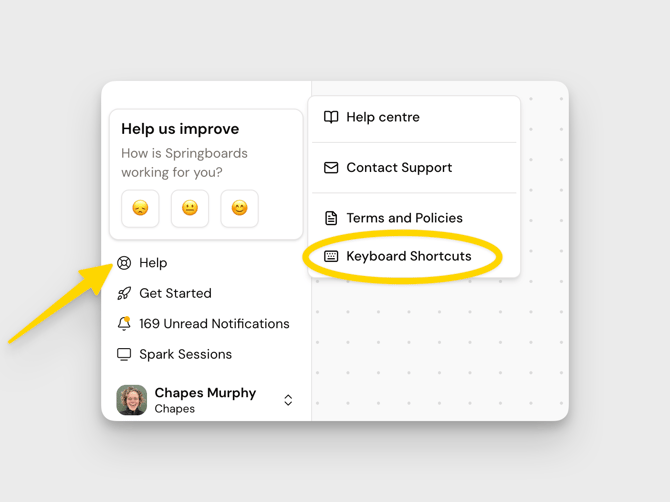
You can click on the Help menu in the bottom right hand corner of your session at any point. This is where you will find the Keyboard Shortcut menu if you ever need reference it.
Must-know Shortcuts
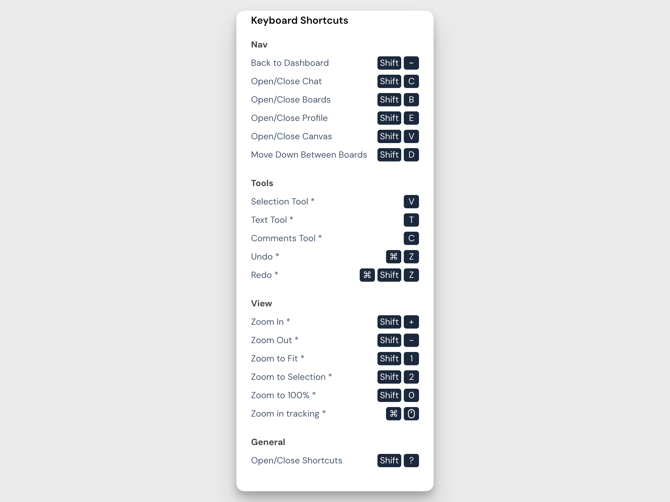
Open / Close Shortcuts — Shift + ?
Pull up the full shortcuts list anytime, without leaving your flow.
Open / Close Canvas — Shift + V
Jump in and out of Canvas
Move Down Between Boards — Shift + D
Navigate through your boards quickly—no mouse needed.
Zoom to Fit — Shift + 1
See your entire Canvas at a glance.
Zoom to Selection — Shift + 2
Focus in on exactly what matters.
Text Tool — T
Start writing instantly.
Selection Tool — V
Select and move Pins with precision.
Undo / Redo — ⌘ + Z / ⌘ + Shift + Z
Quickly fix mistakes or bring ideas back.
Navigation
Move around your workspace without slowing down:
- Back to Dashboard — Shift + ~
- Open / Close Chat — Shift + C
- Open / Close Boards — Shift + B
- Open / Close Profile — Shift + E
View controls
Adjust how you see your work:
- Zoom In / Out — Shift + / Shift -
- Zoom to 100% — Shift + 0
- Zoom with trackpad — ⌘ + pinch
Why use shortcuts?
Because momentum matters. Shortcuts cut down clicks, reduce friction, and help you stay focused on the work, not the interface.