
Overview
Session instructions enable you to provide context around the work you're doing to help guide Springboards. Beyond the background on a project or client, you can also bring in tacit knowledge and your own creative architecture to the platform. Start by dropping in a client or project brief, define your positioning and tone, and shape the strategic foundation before you start generating.
Instructions apply to everything in your session: boards, custom boards, and chat.
Session instructions replace the previous Profiles feature in Springboards.
What's a Session Instruction?
An instruction is a piece of context you give Springboards: information you want the AI to know and use throughout your session. That might be:
- Who you're working for: a brand, a client, a product
- What you're trying to achieve: a campaign brief, a strategic direction, a target audience
- How you want the AI to respond: tone of voice, formatting preferences, things to avoid
- Requirements for what you want to see: Sourcing, format & exclusions
Once saved, instructions can be added to any session and toggled on or off as needed. Multiple instructions can be used simultaneously — for example, one for your brand and one for your preferred writing style. You might then add a third instruction layer that is designed to sharpen thinking by rationalising through the lens of a specific theory or principle.
Create a new instruction
- Open the Session Instructions panel from the sidebar
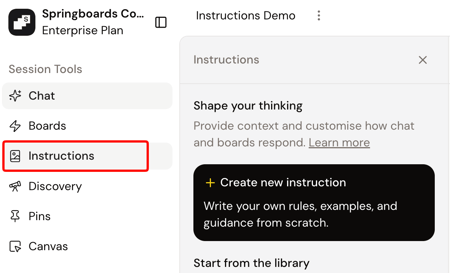
- Click Create new instruction
- Write your instructions in the text field. The more detail you include, the sharper your outputs.
- Not sure where to start? Click Try sample to use a pre-built example.
- Optionally, upload one or more files (PDF, CSV, TXT, PNG, JPG, WebP or MD)
- Click Save — you’ll be prompted to give it a name, description, and choose who to share it with in your workspace.
Add an existing instruction
- Open the Session Instructions panel from the sidebar
- Click Browse Library
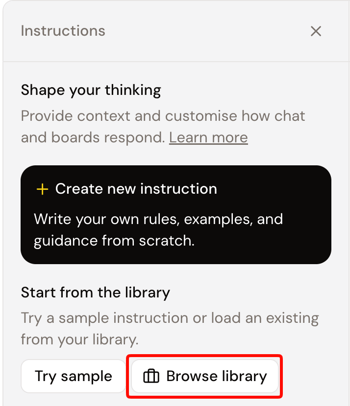
- Choose an existing instruction to add
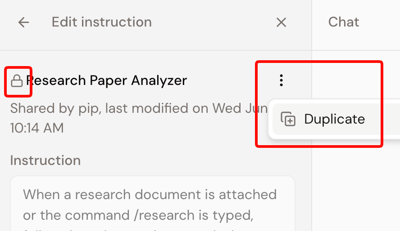
Note: Instructions created by someone else are locked. To make edits, click on the instruction, then select Duplicate from the three-dot menu. For privacy reasons, files attached to the original instruction are not copied across when duplicating. Please ask your colleague for these original documents if they are required.
Activating and deactivating instructions
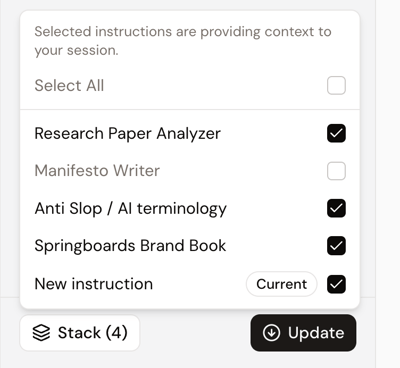
Once you have an instruction added to your current session, your Instruction Stack (the list of instructions you’ve added to this session) will appear. This lets you control which instructions are active in the current session.
To toggle an instruction on or off, simply click the tick on the left of the instruction. The checkmark icon will update to reflect the current state.
Note:
- By default, all instructions added to a session are active.
- Multiple instructions can be active simultaneously — all active instructions are combined and used as context.
- Deactivating an instruction removes it from the session context but does not delete it from your stack. Click the three dots to the right of your instruction to open the instruction menu. Then click Remove from Stack in the menu to remove it entirely from the session.
- When creating or editing an instruction, use the Stack button in the bottom left of the panel to manage your stack. This is useful for isolating a new instruction while you work on it.
Tips & tricks
- Layer multiple instructions — try one for your brand context, one for tone of voice, and one for how you like the AI to respond (e.g., "bullet points only, no em dashes"). Toggle them on and off as the project demands.
- Be specific — the more context you give, the more on-brief your outputs will be.
- Attach relevant documents like brand guidelines, client briefs, or research PDFs to give Springboards the full picture alongside your text.
- Start with samples — use Try sample to see what a strong instruction looks like before writing your own.
Sessions using old Profiles
- Sessions created using Profiles remain unchanged and will continue to work.
- New sessions will only use session instructions.
- Existing saved Profiles have been converted to session instructions.
- Previously, these profiles used individual fields (brand, product, audience, etc.).
- These have been converted into a single instruction along the lines of: "I'm developing a [Product] for [Brand]. The audience is [Audience] and the reason to believe is [Reason to Believe]."
- Unsaved profiles were not converted.
- To recreate them in the same format: start a new session, create a new instruction, and use the brand profile example as a starting point.