Overview
Your dashboard is the launchpad for everything inside Springboards. From here, you can start something new, jump back into past work, or stay in sync with your team. Here's a rundown of what you'll find there:
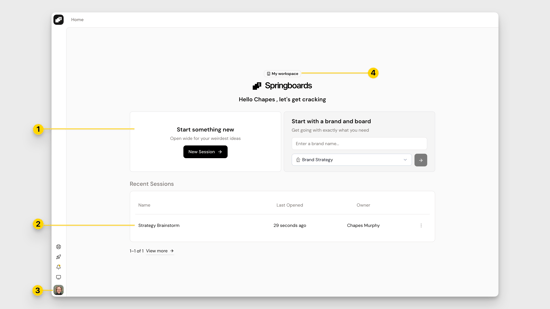
1. Start a Session
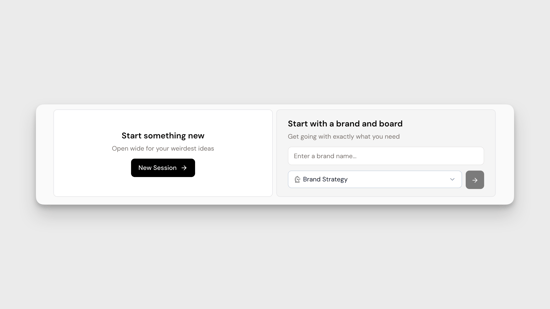
At the top of your dashboard, you’ll see two ways to begin a session:
- Start something new: Click New Session to open a fresh session and jump straight into thinking.
- Start with a brand and board: Enter a brand name and choose a board to begin with more structure from the outset. This is ideal when you know exactly what you’re working on.
2. Recent Sessions
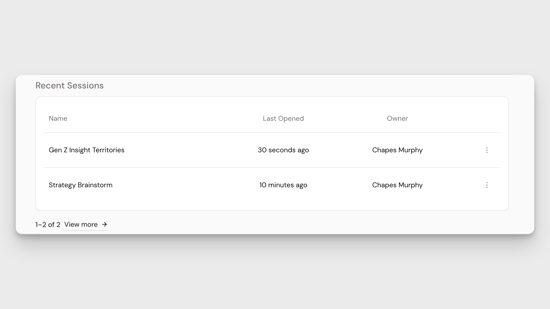
This is where all your previous work lives.
Every session is automatically saved, so you can return to any project at any time. Click on any session to open it. Stacked person icons indicate shared sessions with collaborators. Use the three dots to the right of a session for additional options like sharing or deleting.
3. Account Settings & Help
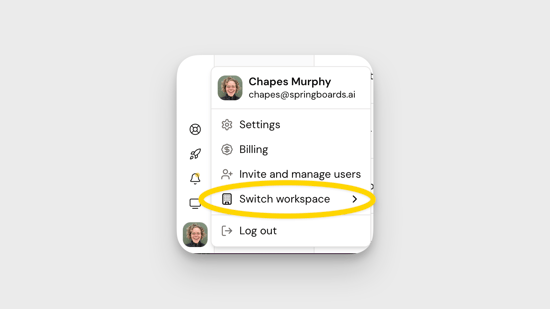
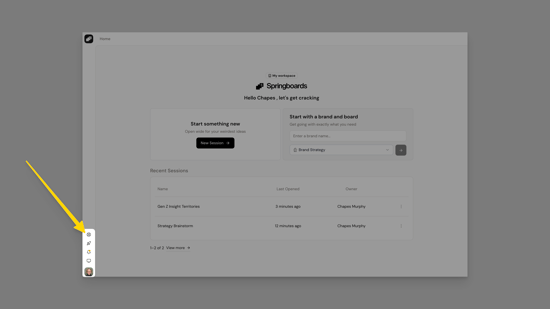
In the bottom left-hand corner of your dashboard, click your profile picture or initials to access your account settings. Here, you can update your name, role, and language preferences.
You’ll also find Need Help in this bottom left navigation in the form of a lifesaver icon. This gives you access to support resources if you need a hand.
4. Your Workspace
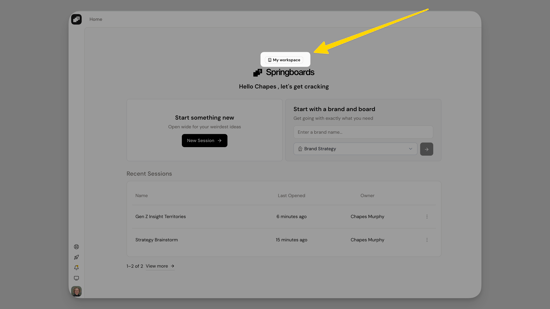
At the center of your dashboard, above the Springboards logo, you’ll see the name of your current workspace.
If you’re in a company workspace, this will show your organization’s name. If you’re in a personal workspace, it will display your custom name (e.g. “My Workspace” or “Chapes’ Workspace”).
If you need to switch workspaces, open your Account Settings from the bottom left navigation, then select Switch Workspaces.