Canvas Templates
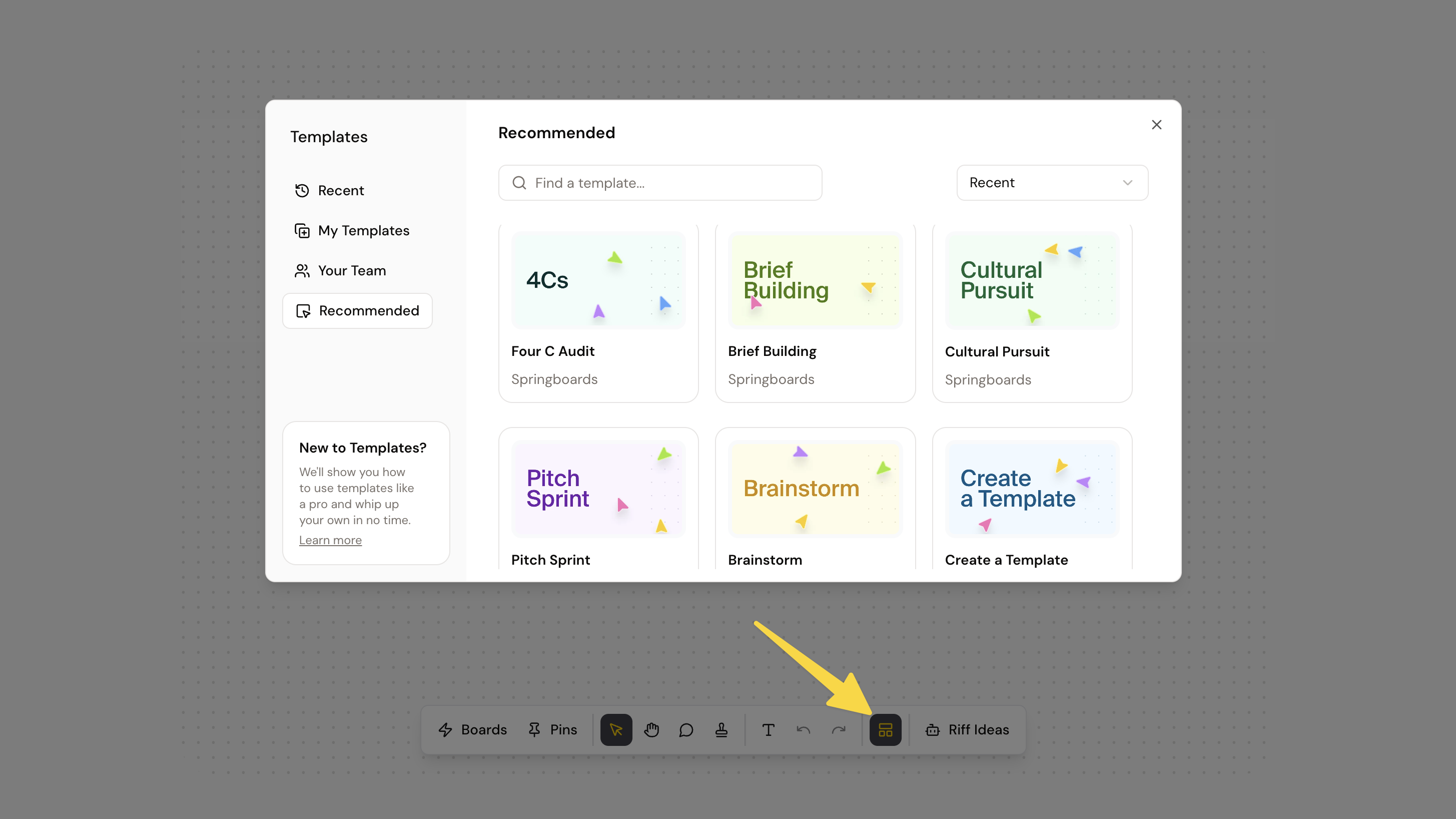
Templates let you save collections of pins, text, images to create layouts that you can reuse across any Canvas.

Updated
by Justin Lew
What are Templates?
Templates let you save collections of pins, text, images, and layouts to reuse across any Canvas. Think of them like starter kits to instantly add structure for common workflows like planning, research, campaign briefs, and more.
Templates can be:
- Saved: Capture what's on your Canvas as a reusable template.
- Shared: Make templates available across a workspace.
- Applied: Insert a template into an existing Canvas.
- Edited: Update a template’s content so it stays relevant for your team.
Benefits
- Start faster: Skip blank canvases and jump straight into structured thinking.
- Consistency at scale: Give teams shared frameworks across projects.
- Better collaboration: Everyone aligns on sections, terminology, and sequence, reducing setup friction.
- Discoverability: Central library makes it easy to find the right starting point for any task.
How to
Create a Template
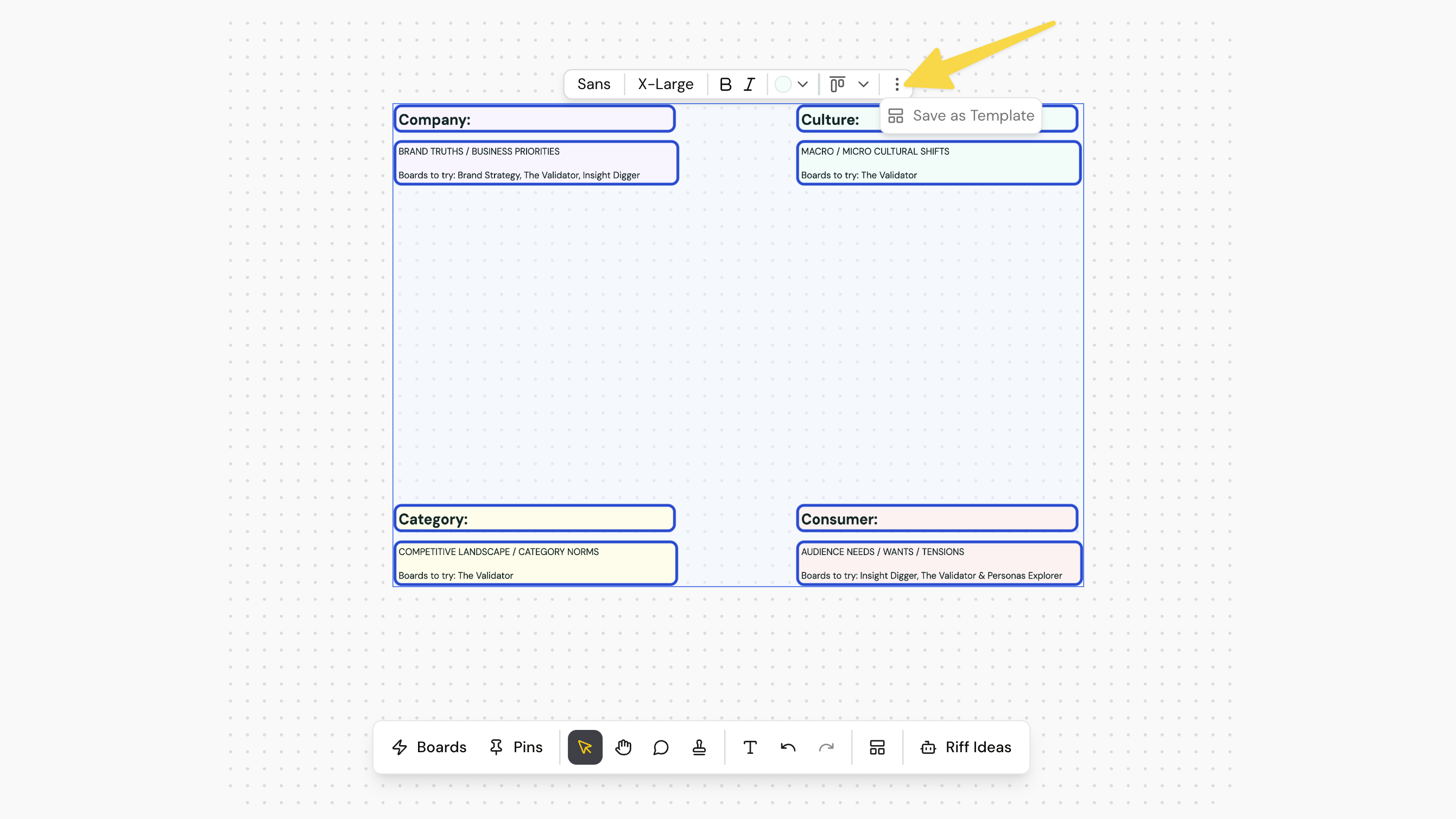
- Add items to your Canvas (Note: Comments and stamps cannot be included in a template)
- Select all of the items you'd like to include (either Click+Drag your mouse across items or Shift+Click the specific items to include)
- On the Selection Tool Bar, hit the Three Dots and select "Save as Template"
- Name your template and select who you'd like to share it with
Use an existing template
- Open a session and switch to canvas mode
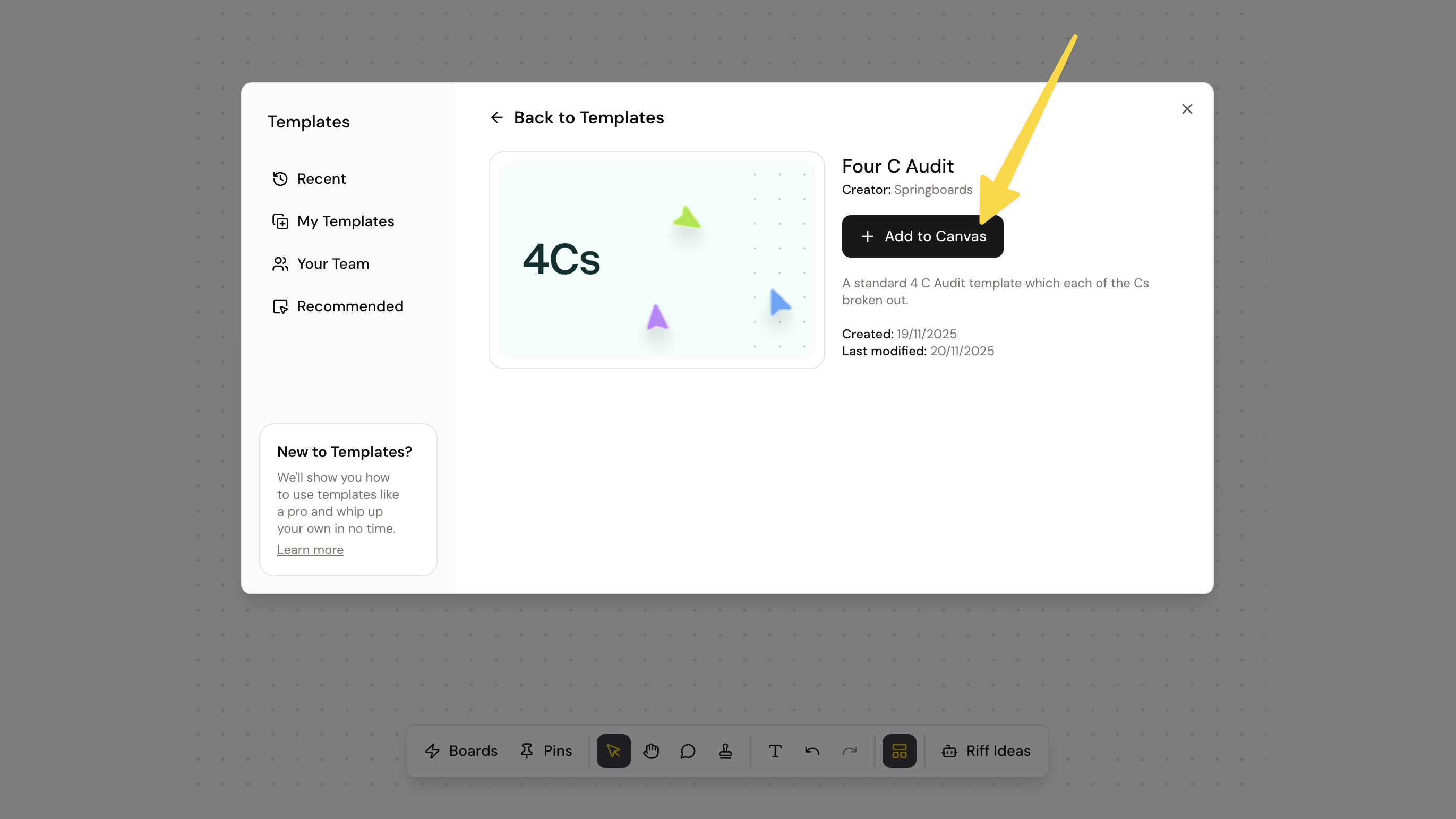
- On the toolbar, select the "Template" Icon
- Choose a template and press "Add"
How did we do?
Collaboration in Springboards
Randomness Bar
