Canvas
Canvas Mode is a collaborative, drag-and-drop workspace to organzine and map out ideas.
A space to organize your thinking
Canvas gives you a spacious, drag-and-drop workspace to start organizing your ideas and mapping out strategic or creative directions. It’s built for collaboration, just drag Pins from the Pin Panel into the Canvas to share them with your team.
Once a Pin is in the Canvas, anyone you’ve invited can see it and contribute. You can even invite people who don’t have a Springboards account to view and leave comments.
Here’s what you’ll see in the Canvas panel:
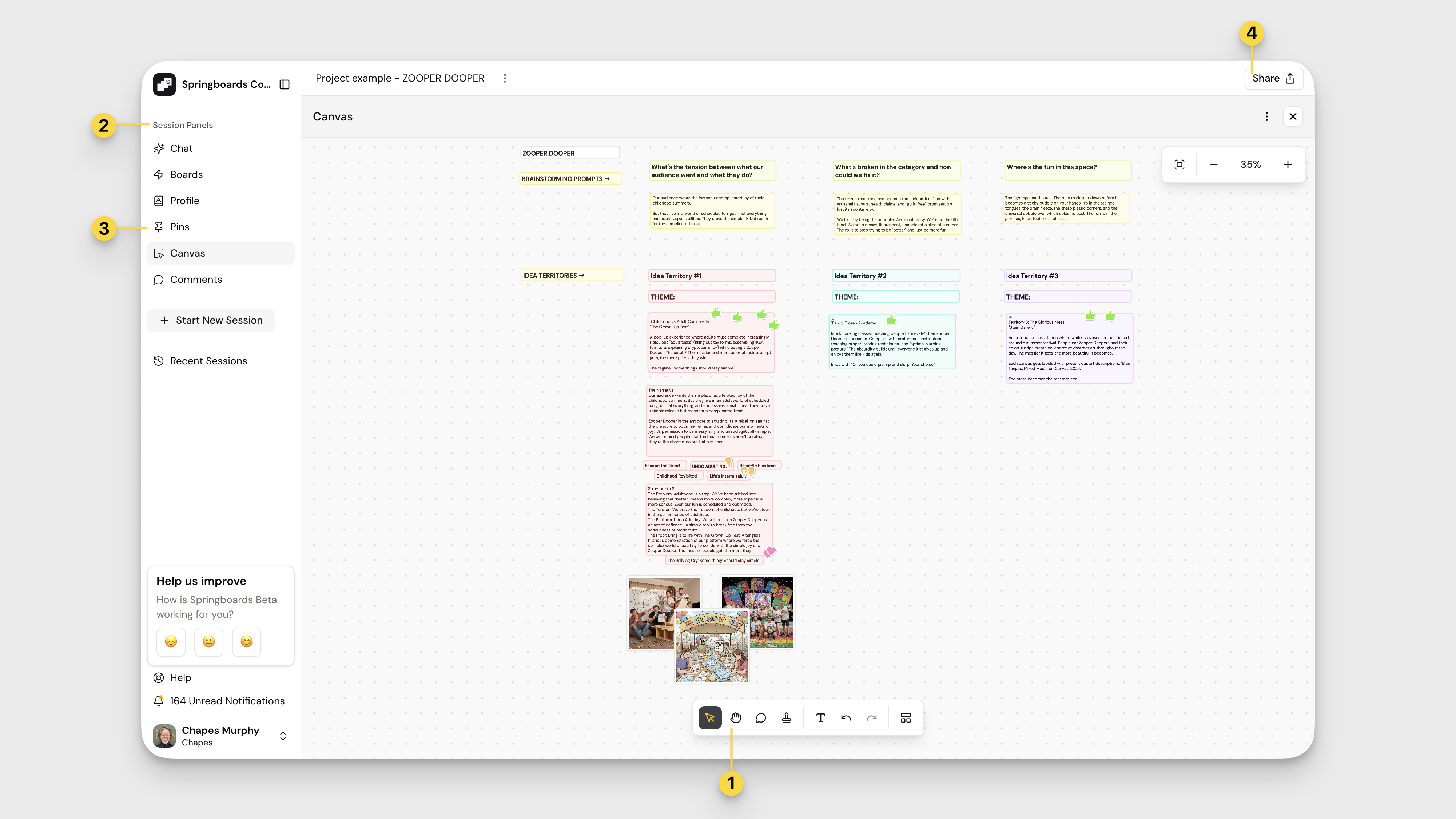
- Your Canvas Tool Bar.
- Your Session Panels give you the ability to choose whichever component of Springboards you'd like to find inspiration.
- Your Pins Panel, where all your pinned content lives, ready to be dragged onto the Canvas and organized
- The Share button, to bring teammates in on your thinking
Canvas Mind Mapping
Ready to shape the chaos? These steps help you move from a stack of sparks and pins to something you can actually use.
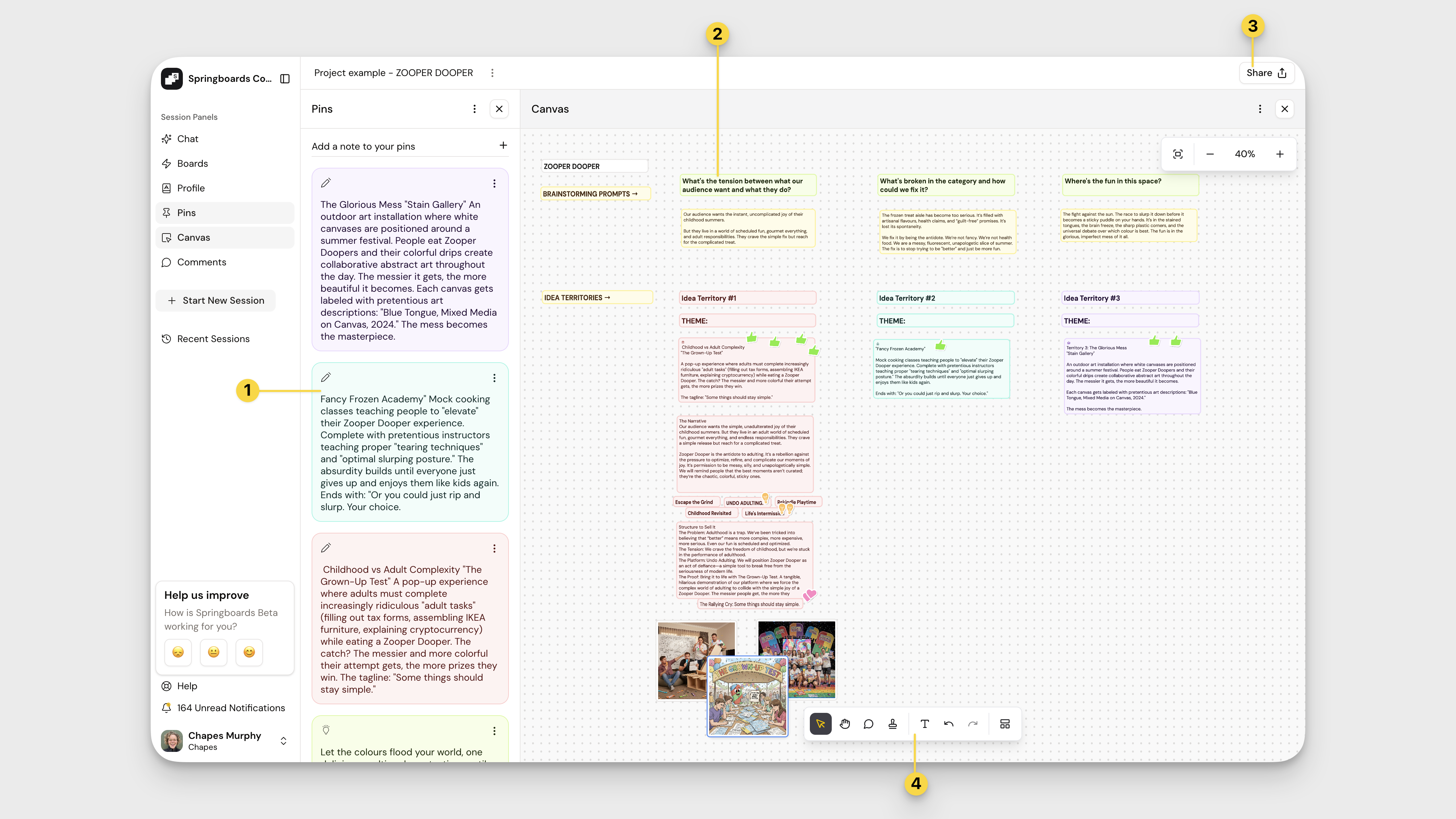
- Start with color coding: Drag your pins onto the Canvas and assign colors to group them by theme, territory, or idea type. Whatever helps bring structure to the chaos.
- Turn your pins into a story:
- Find the thread: Use a brand positioning statement, cultural insight, or creative tension as your organizing idea. Group Pins around it to surface different directions worth exploring.
- Create the thread: Use the Chat to analyse what's on your canvas and develop a narrative, get constructive feedback on ideas and keep iterating at speed.
- Make it collaborative: Share the Canvas with your team, so they can jump in: add comments, drag in Pins, or bring in outside context like customer quotes, creative notes, or killer lines from the brief.
- Use your canvas toolbar: Select different cursors and use a range of collaborative features. You can create text boxes, leave comments, drop stamps. Try dropping in a complete template on your canvas using one of our existing workflows or create your own.
Canvas Toolbar
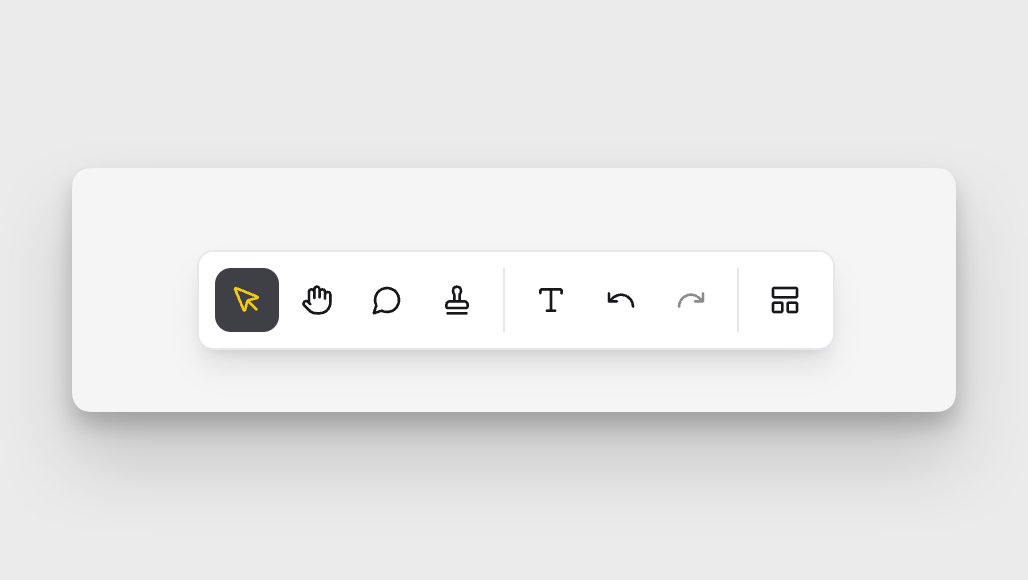
 | Select Tool: For moving pins around. |
 | Move Tool: For moving around your canvas. (pinch to zoom and two finger swipes work for those with a track pad!) |
 | Comment Tool: Add comments on specific pins, tag your coworkers and keep the ideation going. |
 | Stamps: for quick reactions to pins, great for facilitating a team wide brainstorm! |
 | Text Tool: Add or edit text on your canvas. |
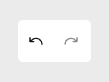 | Undo, Redo |
 | Canvas Templates: helpful canvas layouts for repeatable processes. Leverage premade Springboards templates or build your own! |
Export like a Pro
Once your Canvas is complete , you might need to work with it or show it to others outside of the Springboards platform.
To export a Canvas:
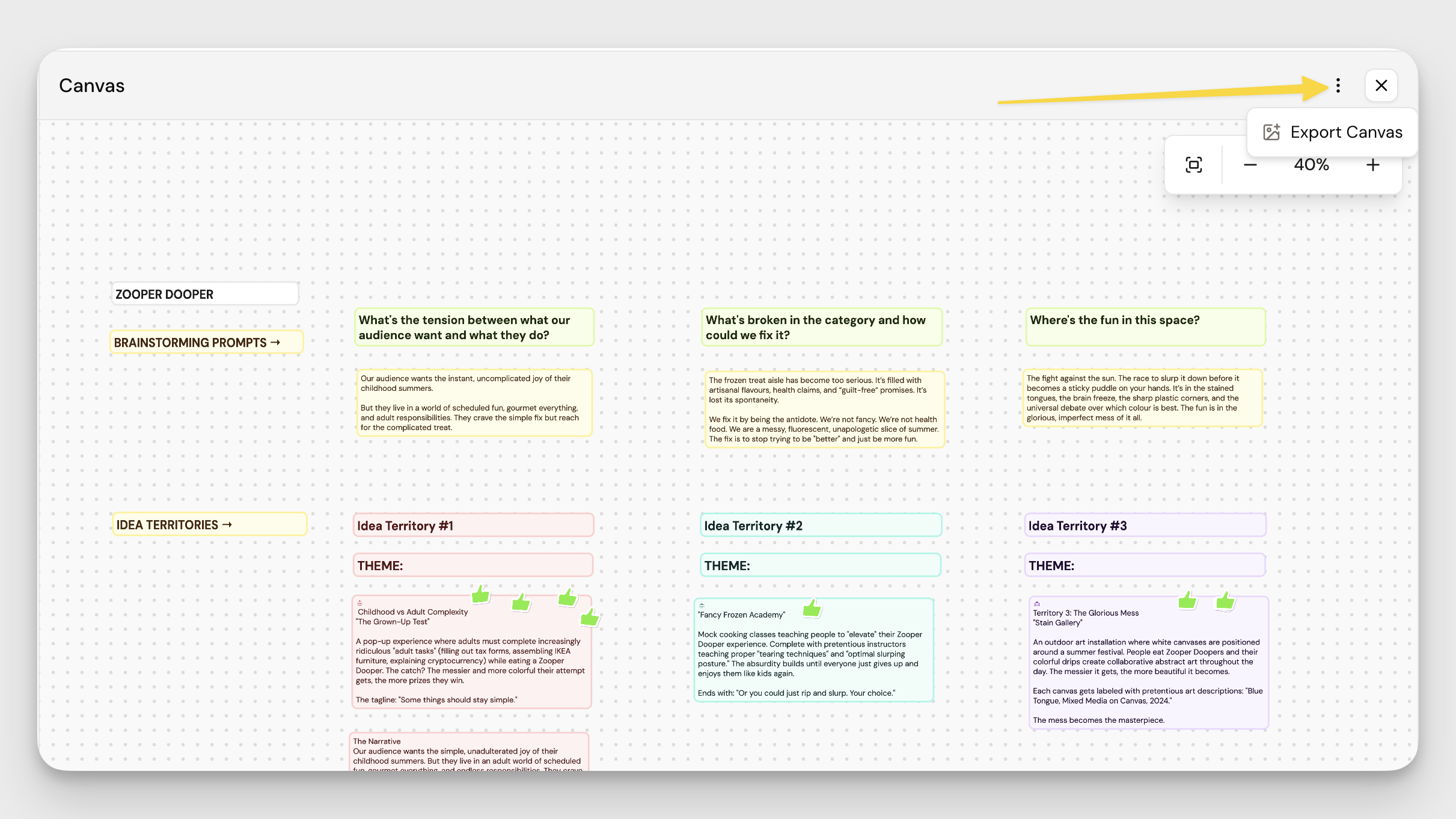
- Click the three dot menu in the top right hand corner of your canvas to drop down the export canvas button. you will see a dropdown button. Clicking Export Canvas will enable you to save the Canvas to your local drive as a .png file. Voila!
- Exporting a section: Sometimes you might not want the entire canvas and only a section. To export a section, use the selector tool to simply drag + highlight all the boxes you wish to export as a .png and right click to 'save as' a .png to your hard drive.
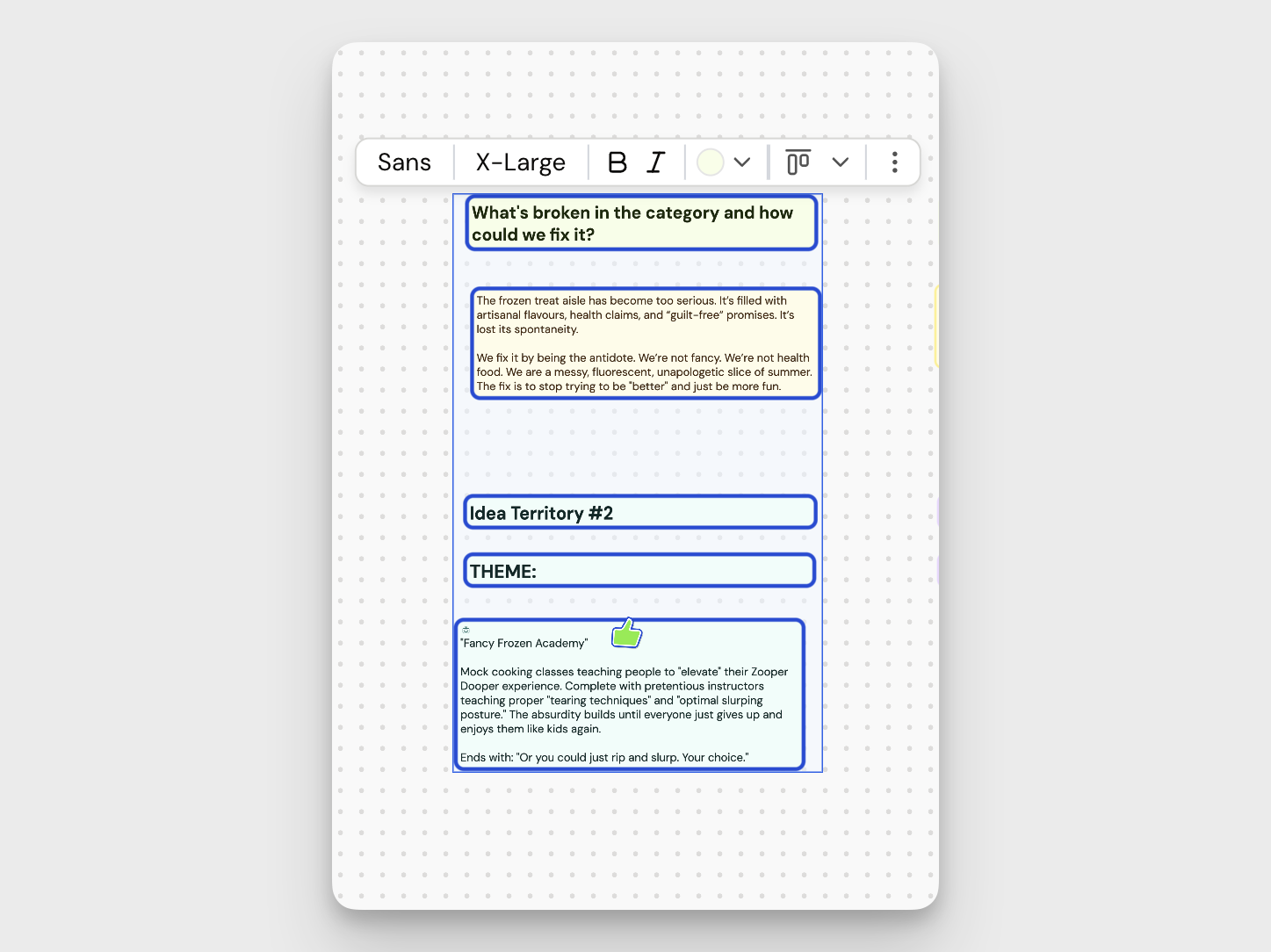
- Copying pins into a word doc: To extract pins from your Canvas, drag to highlight the boxes you want, then press Command+C (Mac) or Ctrl+C (Windows) to copy. Open your Word doc and press Command+V or Ctrl+V to paste.
Pro tips:
- Utilize text boxes to create signposts or title cards to represent different territories for easy ideation.
- Experiment with adding pictures to your Canvas. Either drag in images you’ve generated from the Concept Machine or send images to the canvas from Center Chat by right clicking. You can always copy and paste images in from the web too!
- Gone a little wide with your initial exploration? Use Chat to analyse what's on your Canvas and help weave through-lines or look for gaps.
How did we do?
Profiles
Collaboration in Springboards
